
Appearance
Exercise 4 - Supercharge the Agent
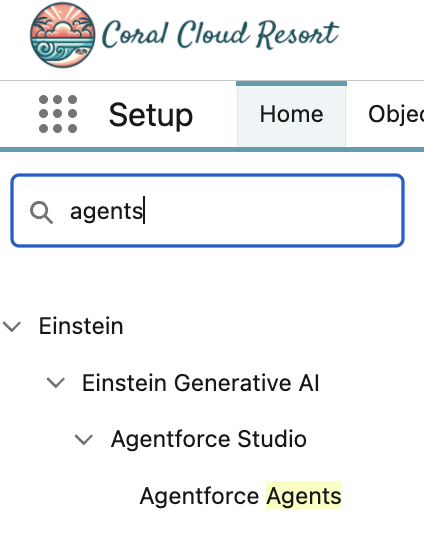
In the Quick Find box, search for Agents and then click Agentforce Agents.
Click into Agentforce (Default), and then Open in Builder.
If your Agent is active, click the Deactivate button in the top right corner. If you see Activate, then you can skip this step.
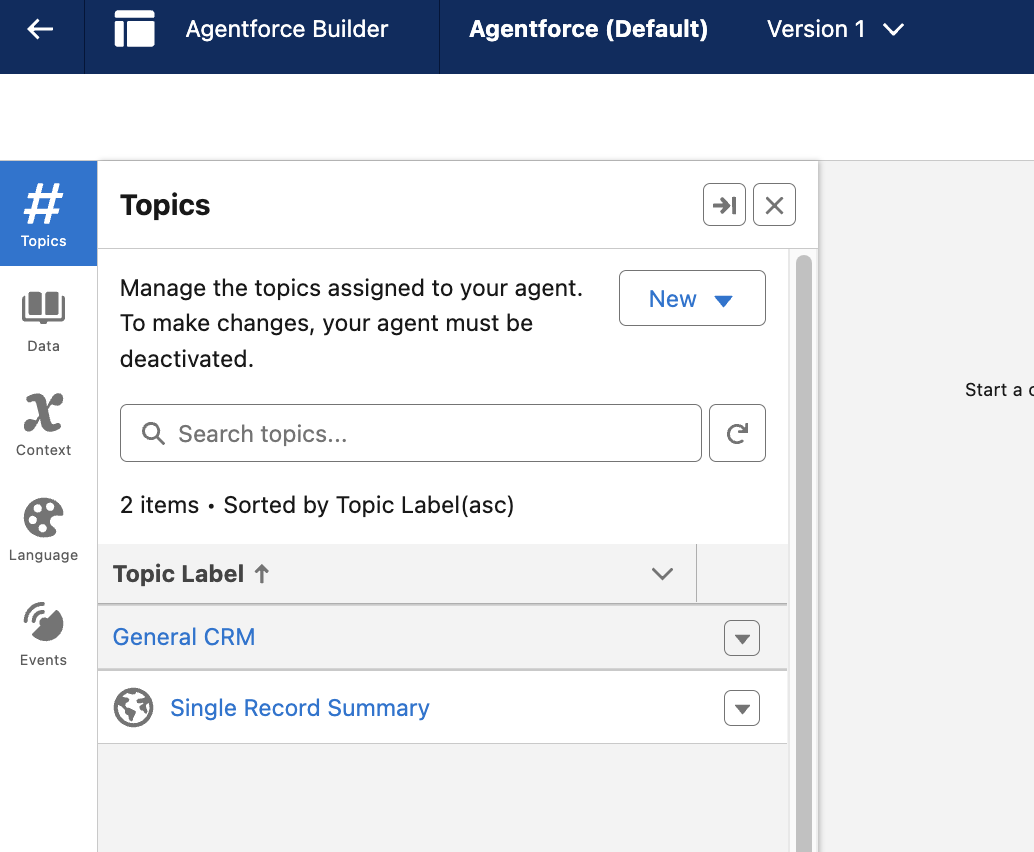
Under Topics, click General CRM.
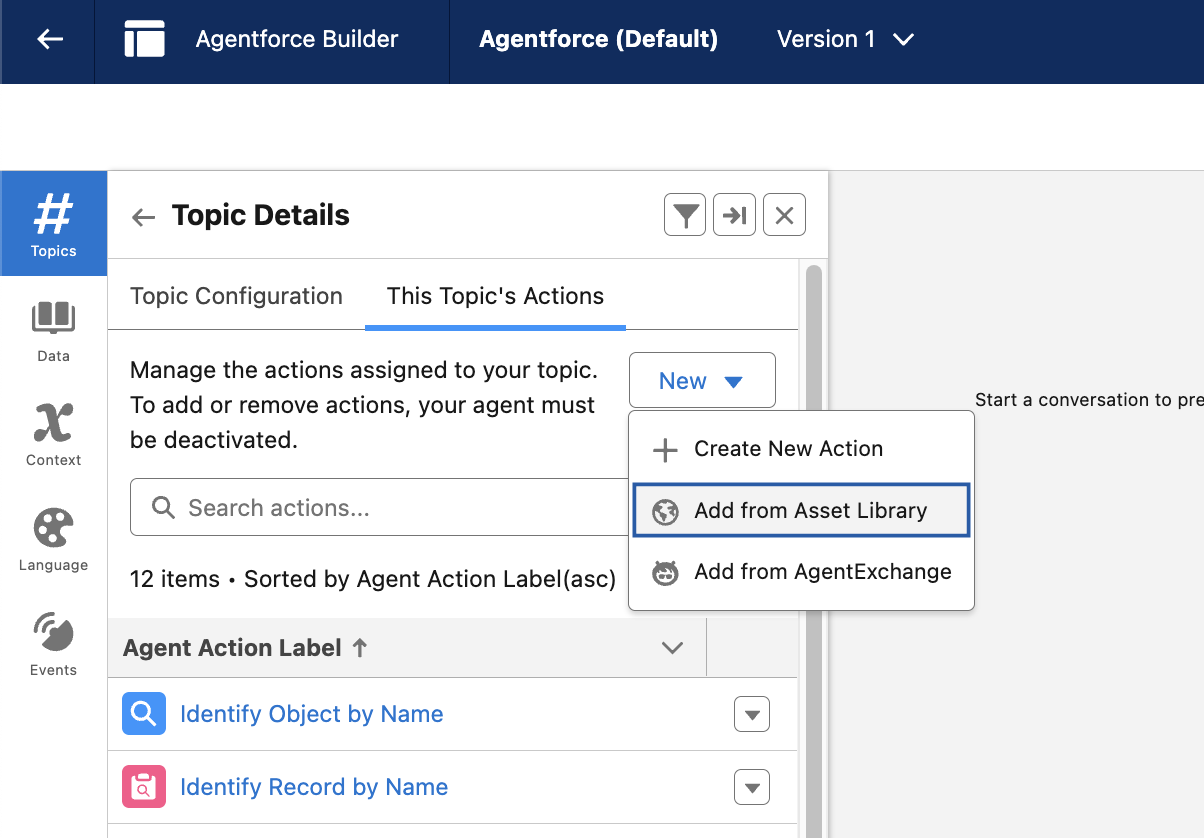
Click the This Topic’s Actions tab, then click the New dropdown button, then select Add from Asset Library.
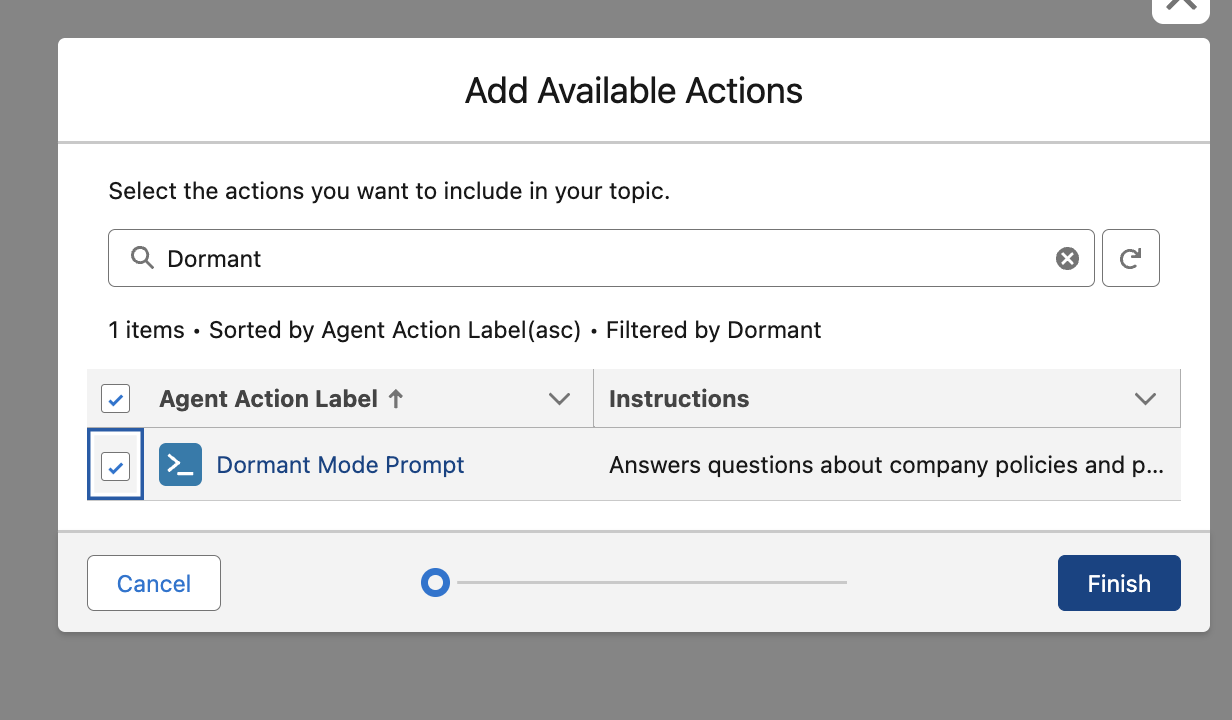
On the next screen, type Dormant, then check the box next to Dormant Mode Prompt, and then click Finish.
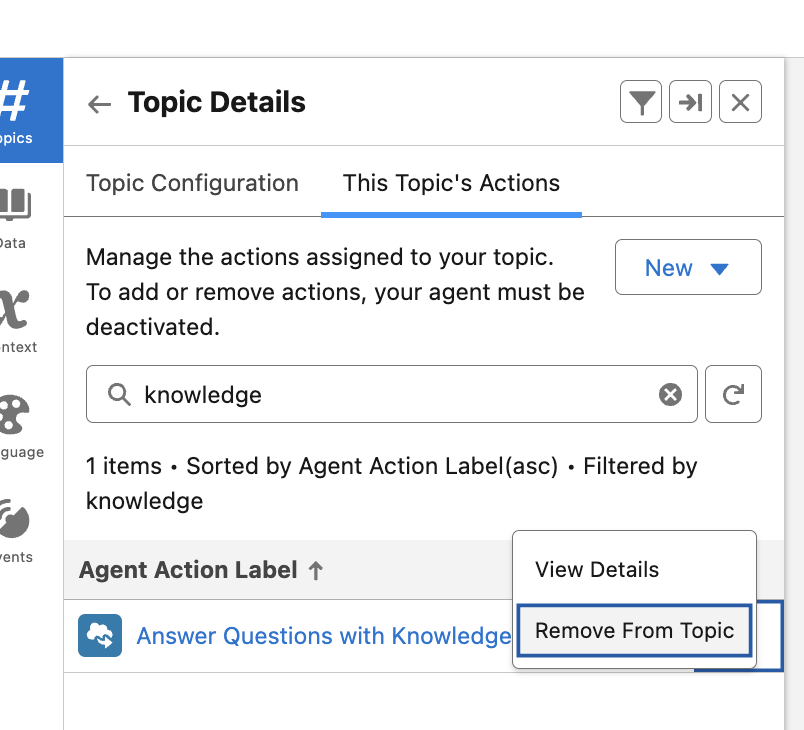
To reduce Agent confusion, we need to remove an out-of-the-box standard action. In the Search actions… box, type Knowledge. This should surface the Agent action Answer Questions with Knowledge. Click the drop down to the right of that, and then click Remove From Topic.
Now, on the right side inside the Conversation Preview, we want to click the Refresh button.

Within the Conversation preview paste the following:
Our hotel is going to be making some renovations soon. How can I pause my services with IDeas?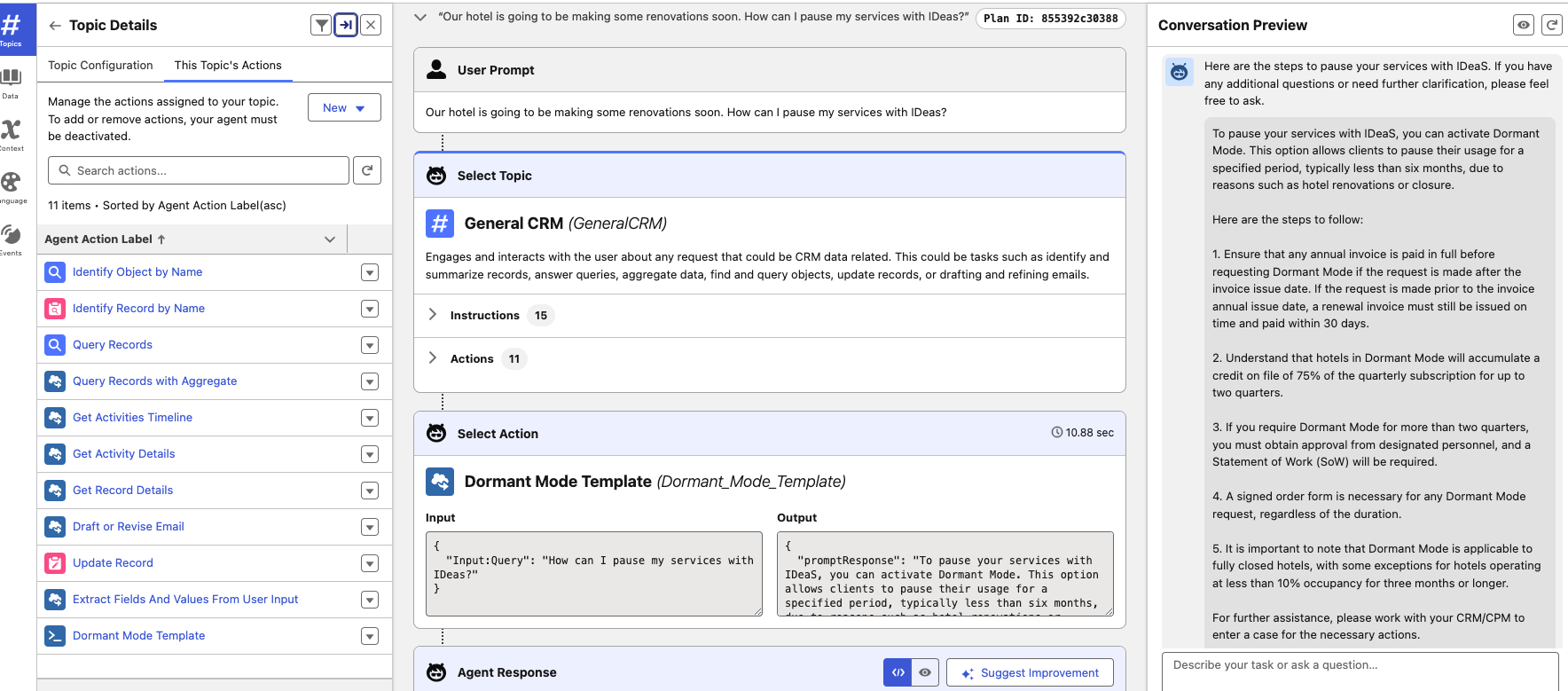
Try some additional questions:
What do I need to do to qualify for Dormant Mode?What are the differences between standard Dormant Mode and Dormant/Data Population Mode in G3?What happens when I’m ready to exit Dormant Mode and resume operations?
This concludes Exercise 4.