
Appearance
Exercise 1 - Turn On Prospecting and Set Up Access
After completing this exercise, you'll be able to:
- Turn on Agentforce and Prospecting in your sandbox.
- Give builders and reps the right access.
- Find the Prospecting page, where recommendations appear.
Step 1: Turn On Agentforce
- Select Setup (⚙️), then search for and select Salesforce Go.
- Select Agentforce for Sales.
- Under Turn on Agentforce, switch the toggle to On. If it's already on, skip to Step 2.
- Select Turn on Agentforce Studio to confirm.
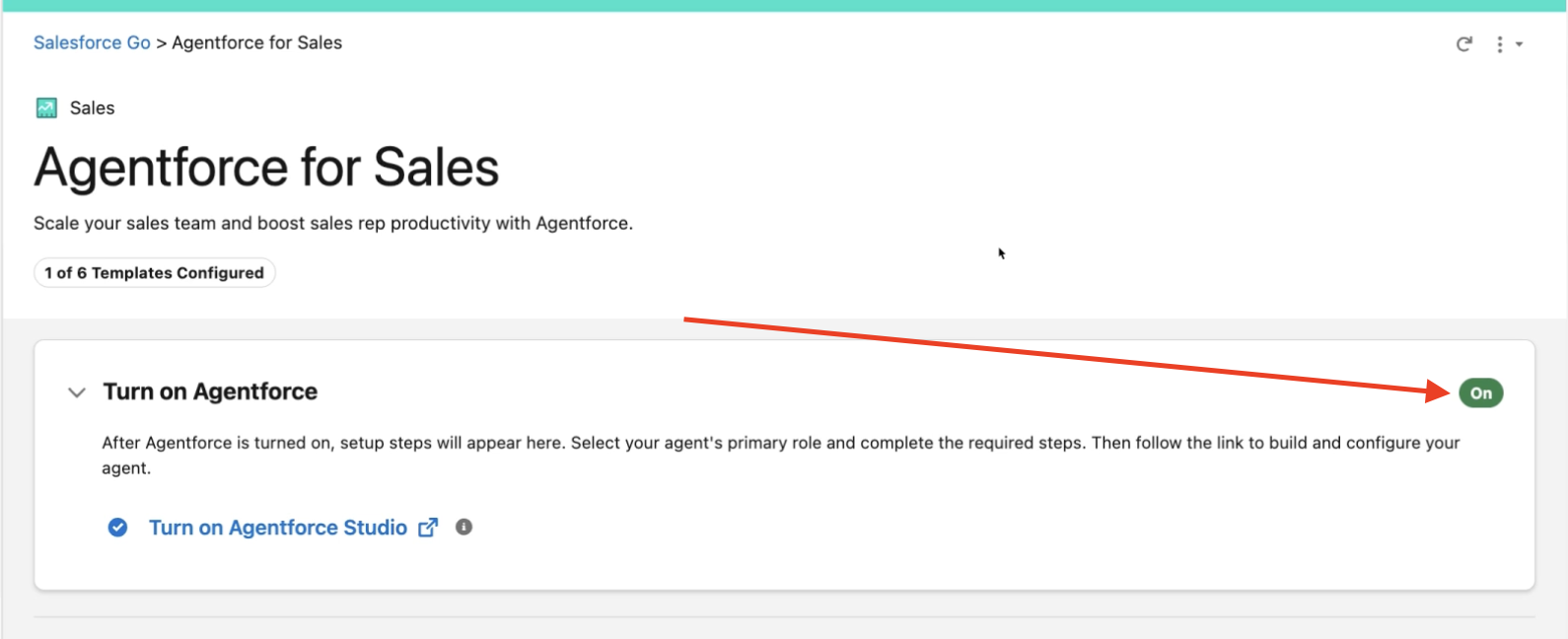
TIP: What happens next. After Agentforce is on, more setup steps appear on this page. You select your agent's primary role and complete the required steps, and then you build the agent.
Step 2: Turn On Prospecting
- On the same Agentforce for Sales page, scroll down to the Prospecting section.
- Switch the toggle to On. In the Turn on Prospecting? dialog, select Turn On. Setup takes a few minutes. The section then shows In Progress, and it can stay that way, which is normal. If the section collapses, select the Prospecting heading to see Manage User Access.
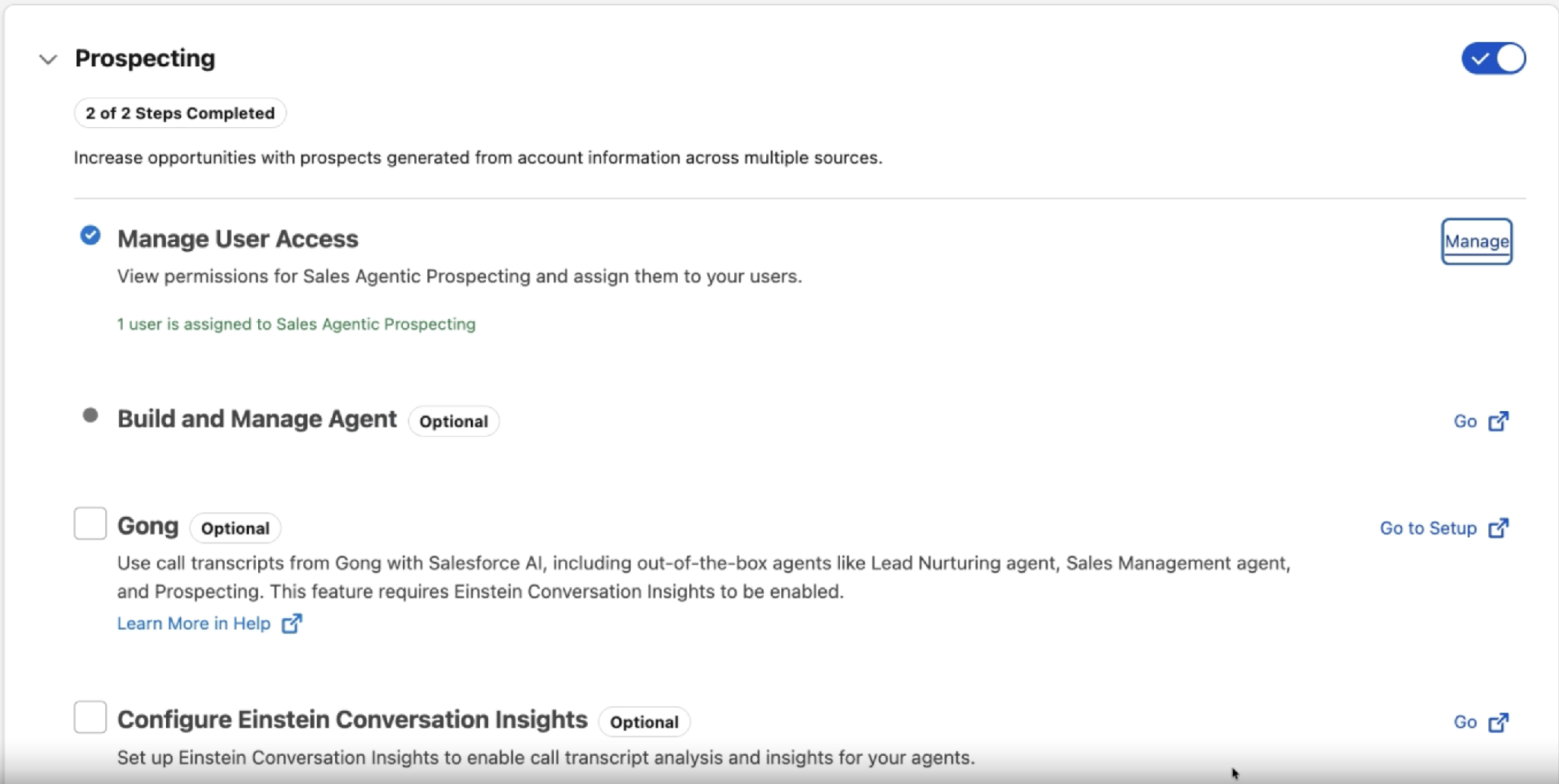
TIP: Turn Prospecting on once, and leave it on. Don't turn Prospecting off and back on. There's a known issue: turning it back on can fail with "We couldn't turn on this feature," and Salesforce Support has to fix it. If something looks wrong, ask an expert before you touch the toggle.
TIP: Other items on this page. Build and Manage Agent is where you create your agent in Exercise 2. Gong, Einstein Conversation Insights, and Einstein Activity Capture also appear further down. Skip them for this workshop (see the Exercise 0 note on Einstein Conversation Insights).
Step 3: Give Users Access
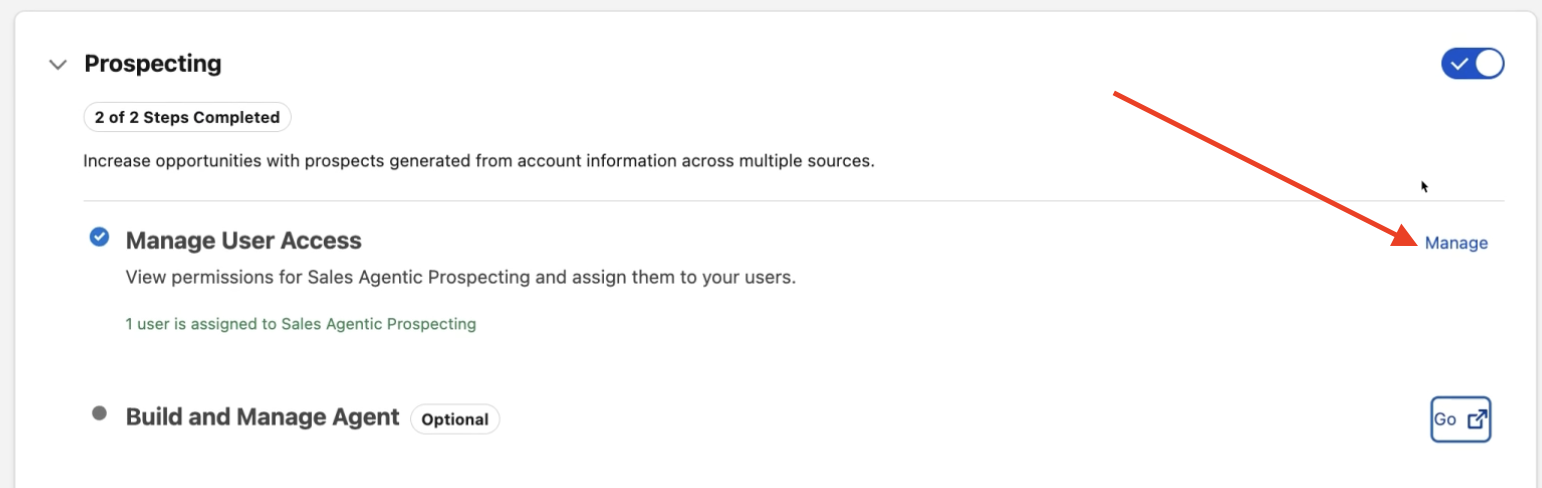
- Next to Manage User Access, select Manage.
The Manage Prospecting User Access screen opens. It has two tabs: Prospecting Agents Manager and Sales Agentic Prospecting.
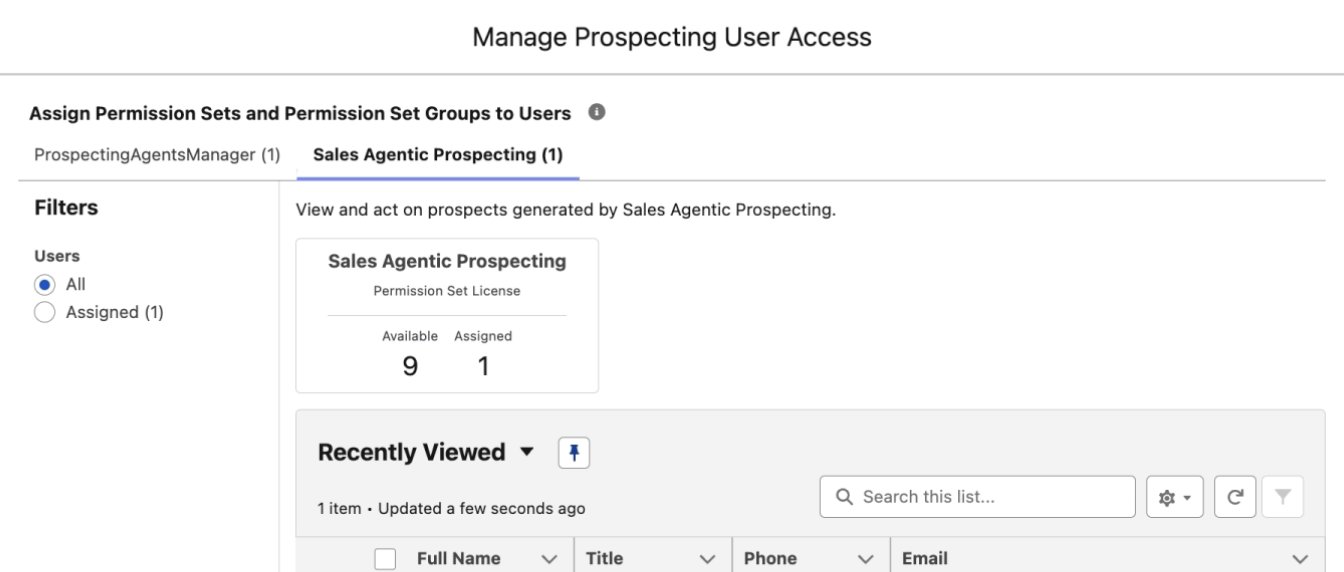
- On each tab, select the users who need it (the list opens on Recently Viewed, so search if you don't see them), select Assign, and then select Close Summary. Use this table to decide who gets what:
| Permission Set | Who Gets It | What It Allows |
|---|---|---|
| Prospecting Agents Manager | Your builder (admin, Sales Ops) | Create and configure the agent: sources, criteria, routing, and settings |
| Sales Agentic Prospecting | Reps and SDRs who work the prospects | View, approve, and reject recommended prospects |
| ZoomInfo Prospecting Access | The builder who connects ZoomInfo (assign it from the user record in Step 4; it isn't on this screen) | Sign in to ZoomInfo from the agent builder |
TIP: Assign yourself both. Assign Prospecting Agents Manager and Sales Agentic Prospecting to your builder user, so you can build the agent and also see the prospects it finds. The manager tab goes by three names: Prospecting Agents Manager on this screen, Sales Agentic Prospecting Manager for its license, and ProspectingAgentsManager as its API name. Check the Available vs. Assigned license counts before you assign more users, so you don't run out.
Step 4: Assign the ZoomInfo Permission Set (Optional)
Skip this step if you're not connecting ZoomInfo today. You can assign it later, before you connect ZoomInfo.
If you are connecting ZoomInfo, your builder needs the ZoomInfo Prospecting Access permission set before signing in to ZoomInfo from the agent builder. Without it, sign-in fails with an authentication error. If it isn't on the Manage screen, assign it from the user record:
- In Setup, search for Users and open your builder's user record.
- Scroll to Permission Set Assignments and select Edit Assignments.
- Add ZoomInfo Prospecting Access, and select Save.
Step 5: Add Prospecting to the Navigation Bar
- In Setup, search for App Manager.
- Next to your sales app, open the ▼ menu and select Edit. A workshop org has several apps named Sales. Edit the one with the developer name LightningSales.
- Select Navigation Items, add Prospecting (not either of the Prospects items), and select Save.
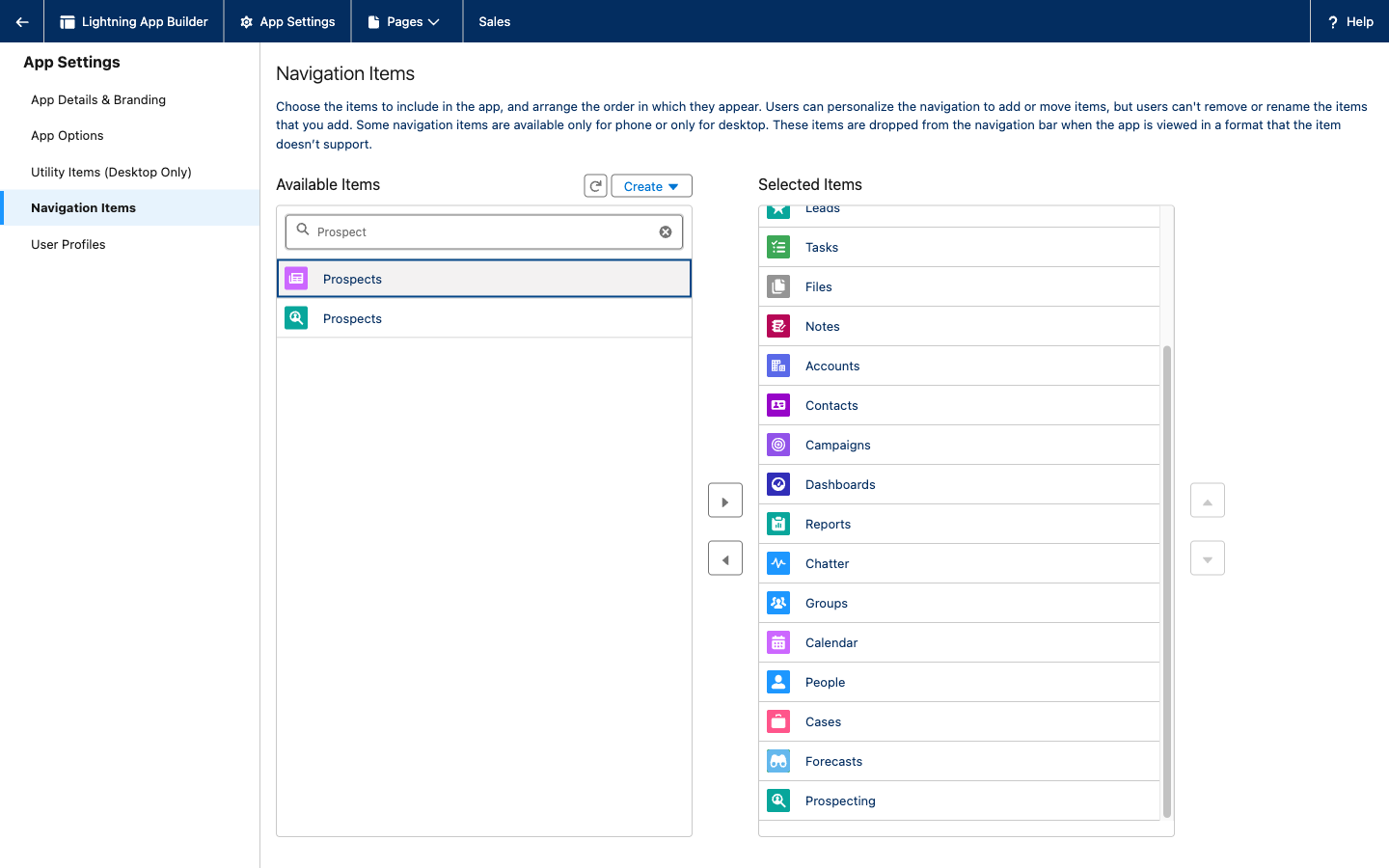
TIP: Not in the nav bar yet? It can take an hour or more to show up. Add /lightning/page/prospecting to the end of your org's URL to open the Prospecting page directly.
Agentforce and Prospecting are on. Your builder has Prospecting Agents Manager and Sales Agentic Prospecting. You can open the Prospecting page.
This completes Exercise 1.