
Appearance
Exercise 4 - Activate and Test Your Agent
After completing this exercise, you'll be able to:
- Set up routing and volume that are safe for testing.
- Activate the agent and generate your first prospects on demand.
- Review, approve, and reject recommendations as a rep would.
Step 1: Set Up Assignment for Testing
On Assign Prospects, you decide how many prospects the agent sends each week and who gets them. For the workshop, use the test settings below so that every prospect comes to you.
Distribute Prospects
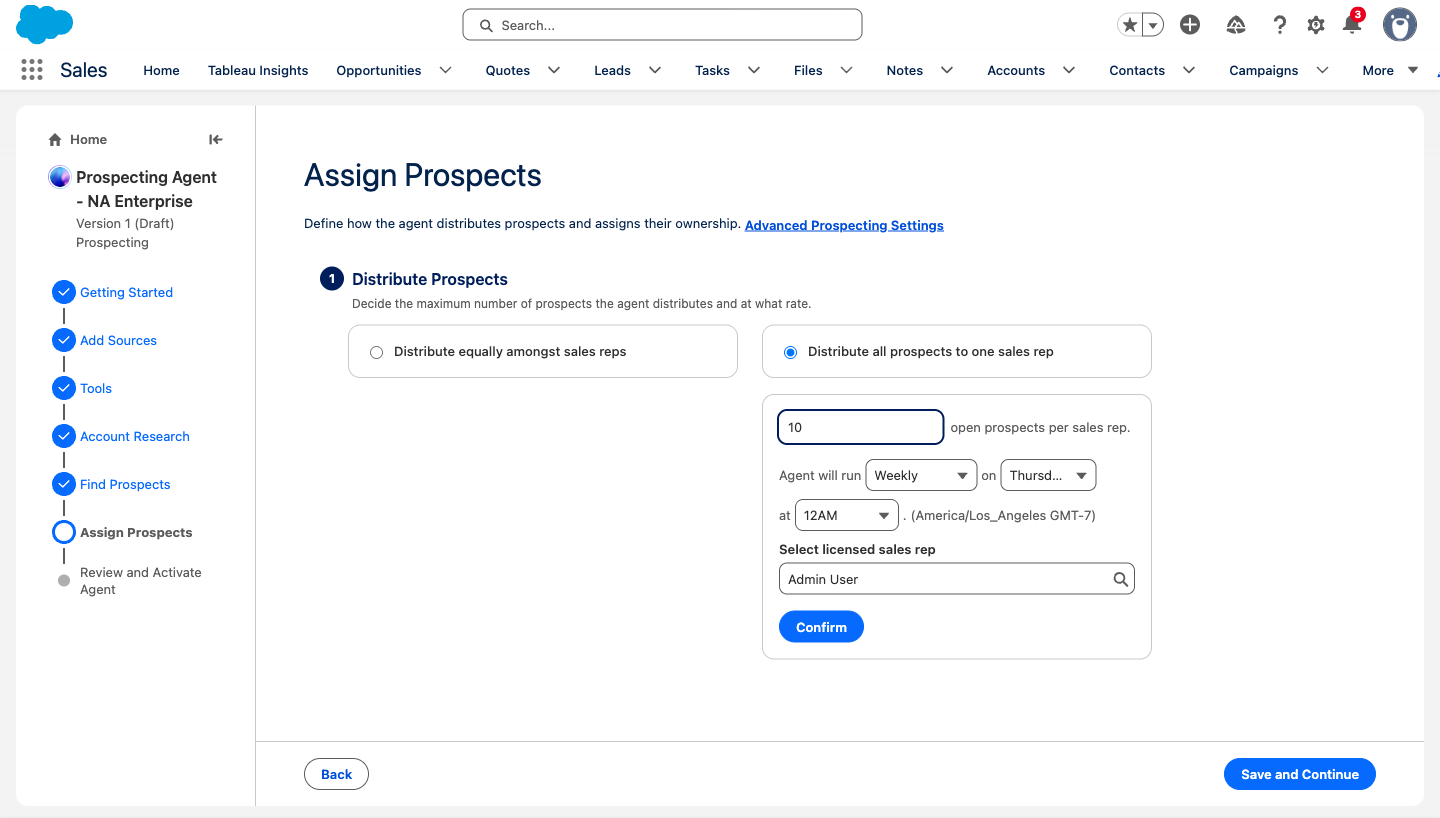
You can choose from two distribution options:
Distribute equally amongst sales reps: spreads prospects evenly across your reps. Best when a team works the same account list.
Distribute all prospects to one sales rep: sends every prospect to one person. Best for pilots and testing.
Select Distribute all prospects to one sales rep. Under Select licensed sales rep, choose your builder user.
Set open prospects per sales rep to 10. The default is 50.
Leave the schedule as it is (Weekly, on Thursday at 12AM), and select Confirm.
Select Save and Continue.
TIP: Why start at 10 per week? It saves credits while you test, and it gives reps time to work each recommendation instead of getting more than they can handle. The right number depends on your business: a focused enterprise ICP might need only a handful per rep each week, while a high-volume SMB team can handle more. Increase it once you trust the quality.
TIP: Reps need access. Anyone who receives prospects needs the Sales Agentic Prospecting permission set (Exercise 1, Step 3). Without it, they can't see or act on their recommendations.
Step 2: Review and Activate
Review and Activate Agent summarizes everything you configured: sources, tools, research criteria, and assignment rules. The Preview Agent toggle at the top shows sample prospects one more time before you activate. It's optional.
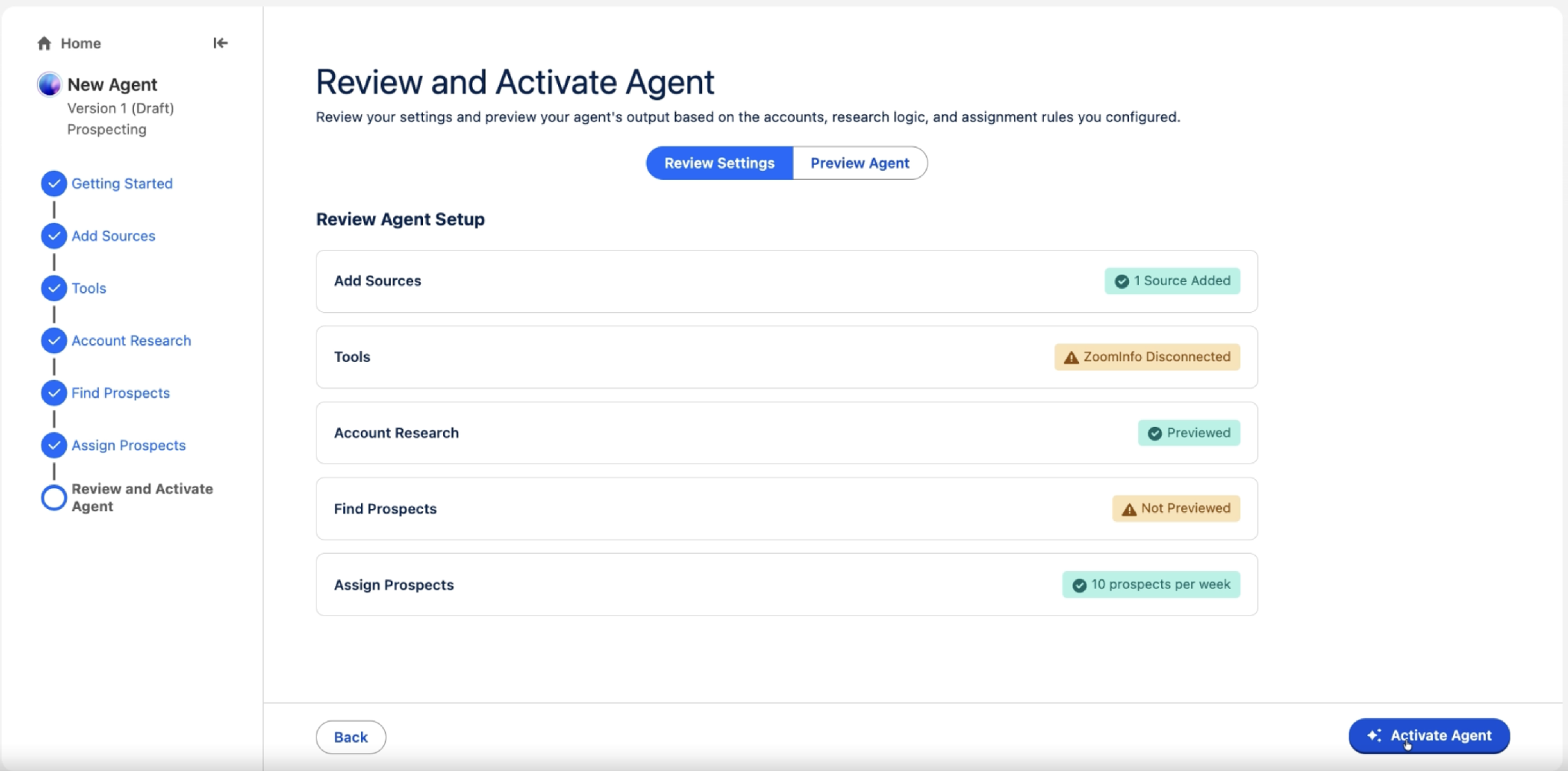
- Check each step's status. Green means it's ready. Yellow means it was skipped or isn't finished. A yellow status doesn't stop you from activating.
- When you're ready, select Activate Agent. Activation takes a minute or two. When you see Your agent is live!, go on to Step 3.
TIP: Common yellow warnings. Tools: ZoomInfo Disconnected is expected in this workshop. The agent still runs, using the contacts already in Salesforce. Find Prospects: Not Previewed means you haven't tested your contact criteria yet. Go back and run Preview (Exercise 3, Step 4) before you activate.
After you activate it, the agent runs every week, on the day and time you set in Step 1.
Step 3: Generate Your First Prospects Now
You don't have to wait for the weekly run. Use either option.
Option 1 — Run the whole agent
- Select Go to Prospects (or open Prospecting from the nav bar), select the Agents tab, select your agent's name, and then select Run Agent in the panel. If you selected Back to Agents, select your agent's name in that list instead. Its panel also has Run Agent.
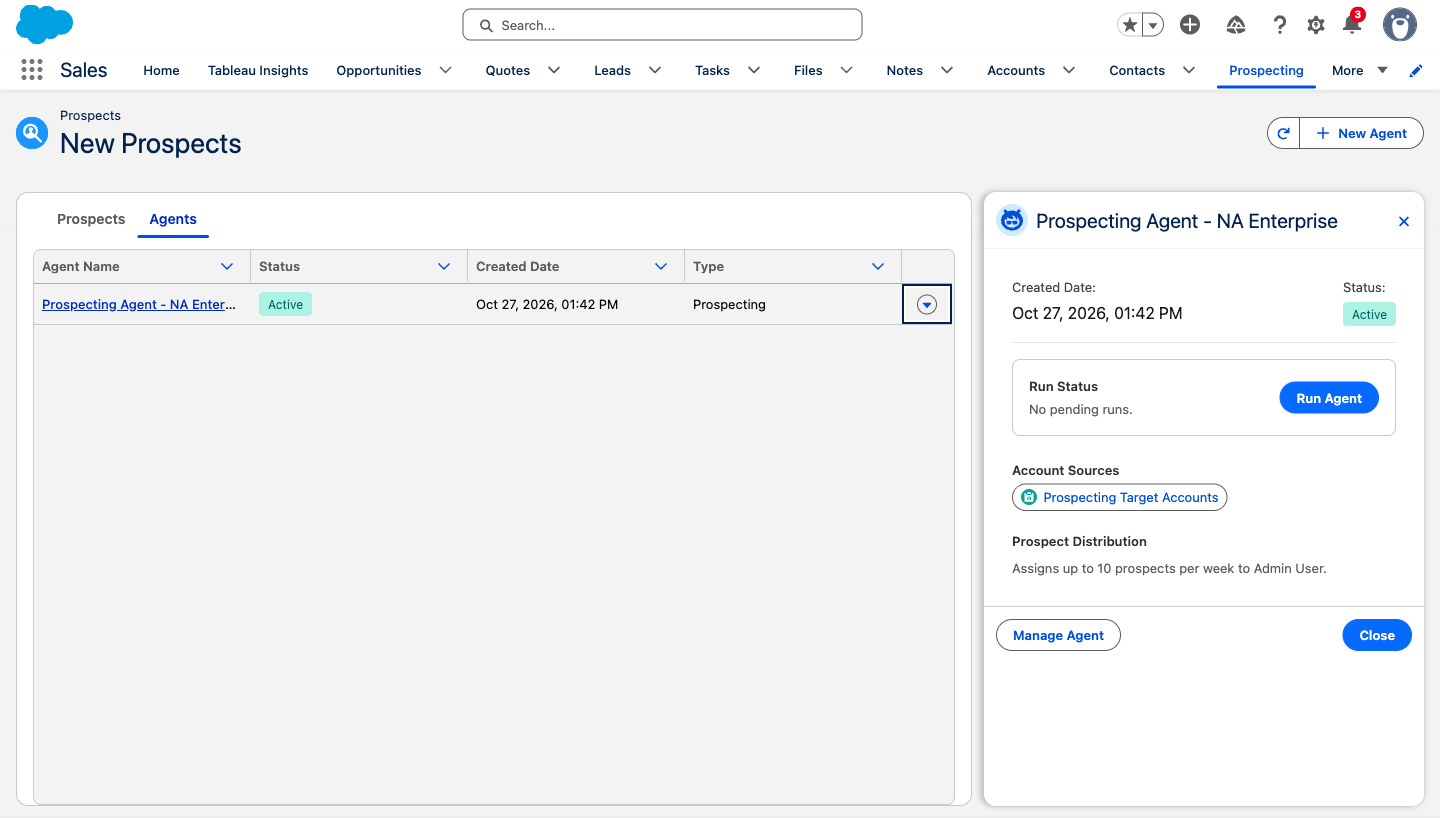
TIP: A run takes a while. Expect the first prospects after about 15 to 20 minutes, and the whole run to take about 40 to 45 minutes. You don't get a notification: the panel's Run Status changes to Your run was completed. To see new prospects, select the refresh button (the circular arrow) at the top right of the page. Without ZoomInfo, the agent recommends only Contacts already in your org, from a few of the accounts on your report. Your test account may not be one of them. That's fine: you already checked it with Preview in Exercise 3.
Option 2 — Run it on one account (requires ZoomInfo)
- Open an Account record, and open the actions menu (the down arrow in the upper right).
- Select Generate Prospects From Account.
- For Agent Name, choose the agent you created.
- For Assign Prospects to, choose yourself.
- For Maximum Number of Prospects, enter 1.
- Select Generate.
TIP: Don't see Generate Prospects From Account? Add the action to the Account page layout or Lightning record page. If you're offered an upgrade to Dynamic Actions, take it. Where the action appears depends on your page layout, so also check the action bar. If the action shows an error, use Run Agent instead.
TIP: Manual runs follow your weekly limit. If a rep's unreviewed prospects already reach the weekly limit you set, a manual run doesn't add more. Approve or reject what's waiting, then run it again.
TIP: Records are created before approval. When the agent finds a new person through ZoomInfo, it creates the Lead or Contact right away, before a rep approves it. It doesn't create duplicates of Contacts that already match. In a sandbox this is harmless. For production, plan for it.
Step 4: Review Prospects as a Rep
- On the Prospecting page, open the Prospects tab. New recommendations are under Approval Required.
- Select Review on a few of them, and read the agent's reasoning on the Insights tab. Why this account checks each Account Research criterion, and Why this prospect shows the fit rating, such as Ideal Prospect.
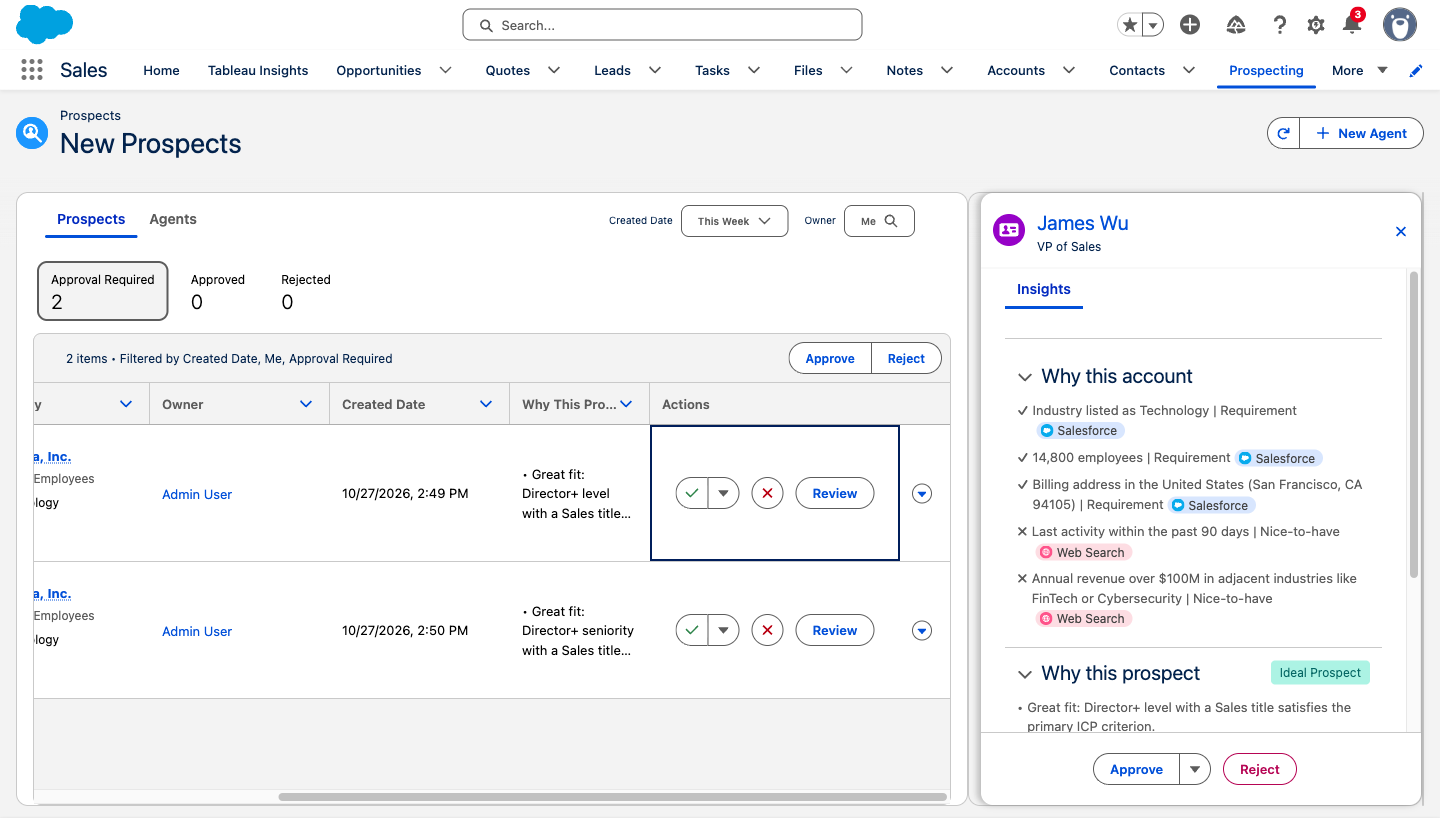
- Approve the good ones and Reject the others, in the panel or with ✓ and ✕ on the row. Neither one asks you to confirm, and rejecting doesn't ask for a reason.
Rejected prospects aren't recommended again right away, and rejections help shape future recommendations. You can't yet set your own rule, such as "don't recommend this person for 60 days."
Your agent is active and has generated prospects. You've approved or rejected at least a few of them in the Prospects tab.
This completes Exercise 4.
Review Your Key Accomplishments
You turned on Prospecting in your own sandbox, connected a real account report, and turned your ICP into instructions the agent can follow. You tested them in Preview, activated the agent, and reviewed its first recommendations as a rep would.