
Appearance
Exercise 3 - Ground a Prompt with Einstein Search
In this exercise, you’ll create and activate a Flex template in Prompt Builder that uses Einstein Search (RAG) to answer Pronto support questions grounded in the Pronto PDFs you ingested.
You’ll configure the template to retrieve relevant chunks using the Pronto Customer Support Retriever, then test and activate it.
Step 1: Create the Flex template
In Setup, search for Prompt Builder, and select Prompt Builder.
Click the New Prompt Template button.
Configure the template as follows:
Parameter Value Prompt Template Type Flex Prompt Template Name Answer Pronto Support Questions API Name Keep default Template Description Answer customer questions using Pronto support policies, FAQs, and terms (RAG). Click Add under Inputs (Optional) and enter the following:
Parameter Value Input Question API Name question Source Type Free Text Use the screenshot below to make sure that you entered the values correctly.
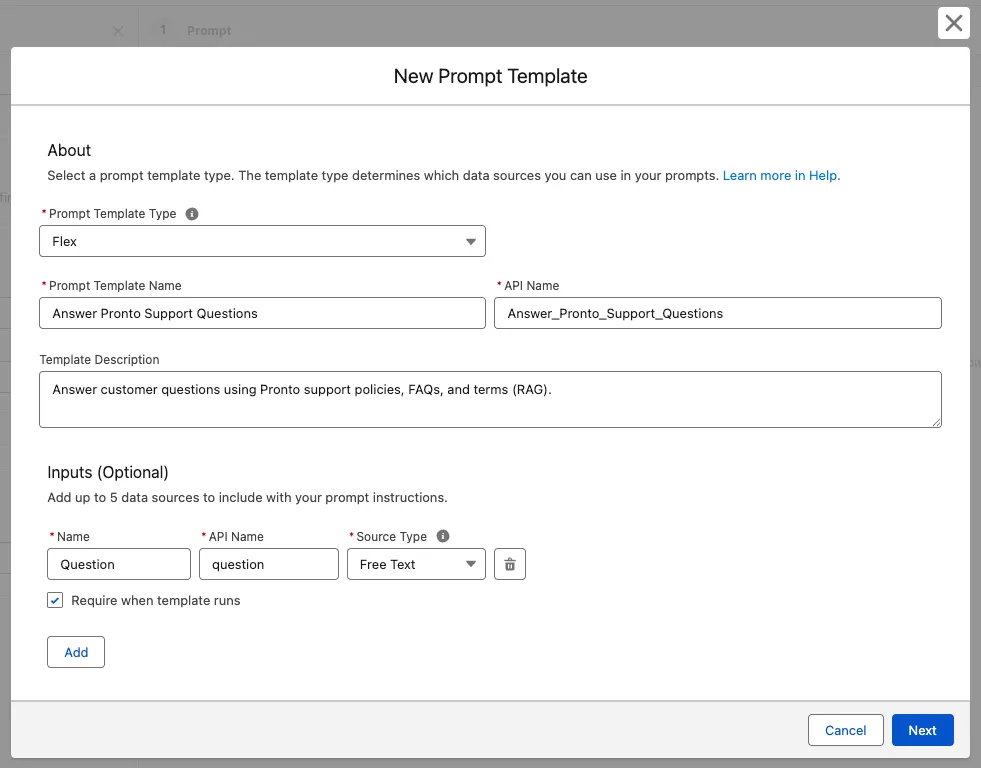
Click Next.
Paste the following text in the Prompt Template Workspace:
Your task is to provide clear and helpful answers to customer inquiries about Pronto's support policies, FAQs, and terms.

Here's the customer's question:
QUESTION_QUERY

Please use the following information to help you answer the question:
SEARCH_RESULTS

Remember to tailor your response to the specific question, focusing on the relevant details from the retrieved content.

Your tone should be friendly and informative, as if you were speaking directly to a Pronto customer.
Locate and highlight QUESTION_QUERY, then delete the line leaving your cursor where it is.
Click the + Insert Resource button to access merge fields and select Question
Locate and highlight SEARCH_RESULTS, then delete the line leaving your cursor where it is.
Click the + Insert Resource button to access merge fields then click Retrievers and then Configure Retrievers.
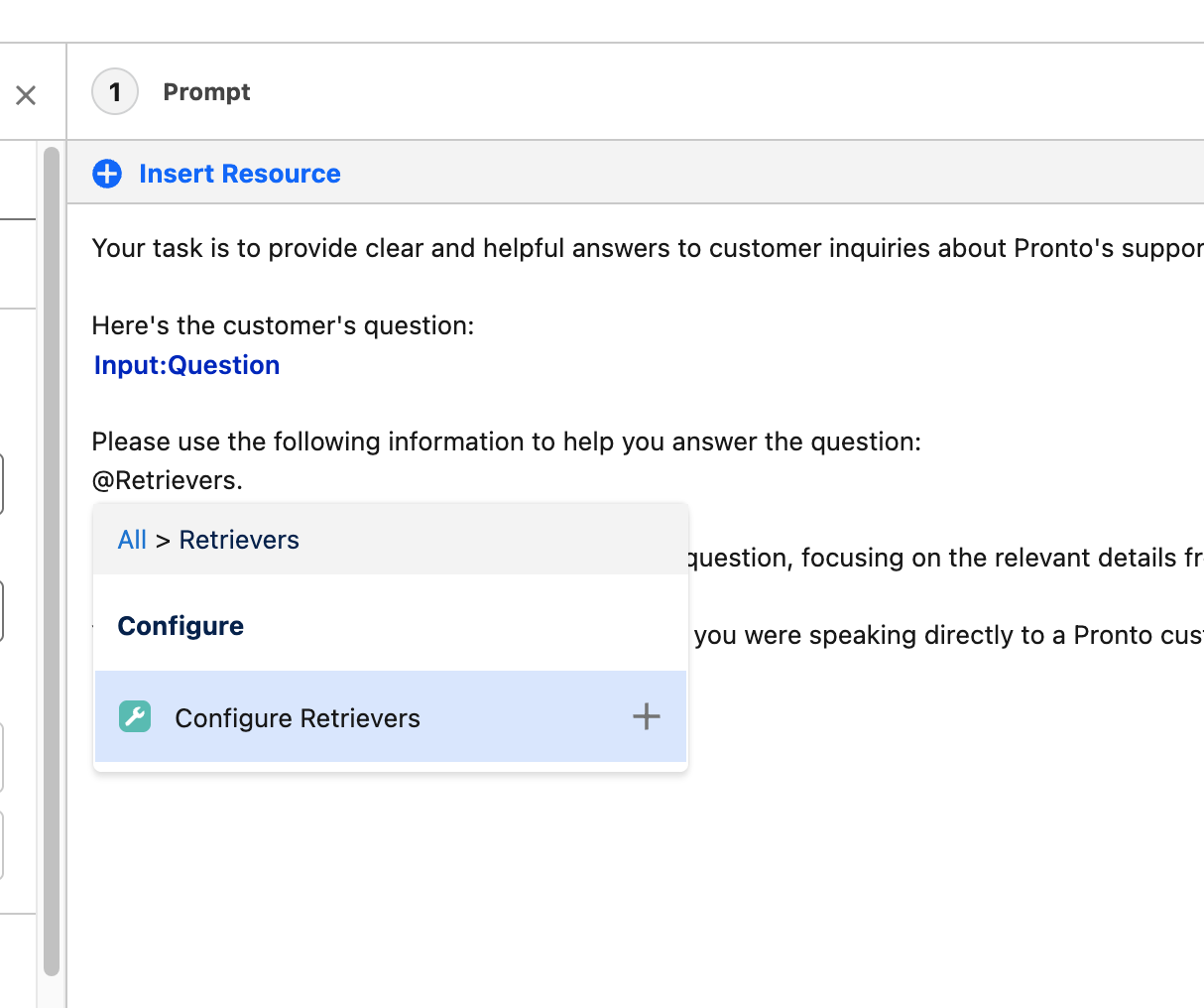
In the Configuration sidebar on the left, click the + icon to the right of File_ADL_Pronto_Customer.
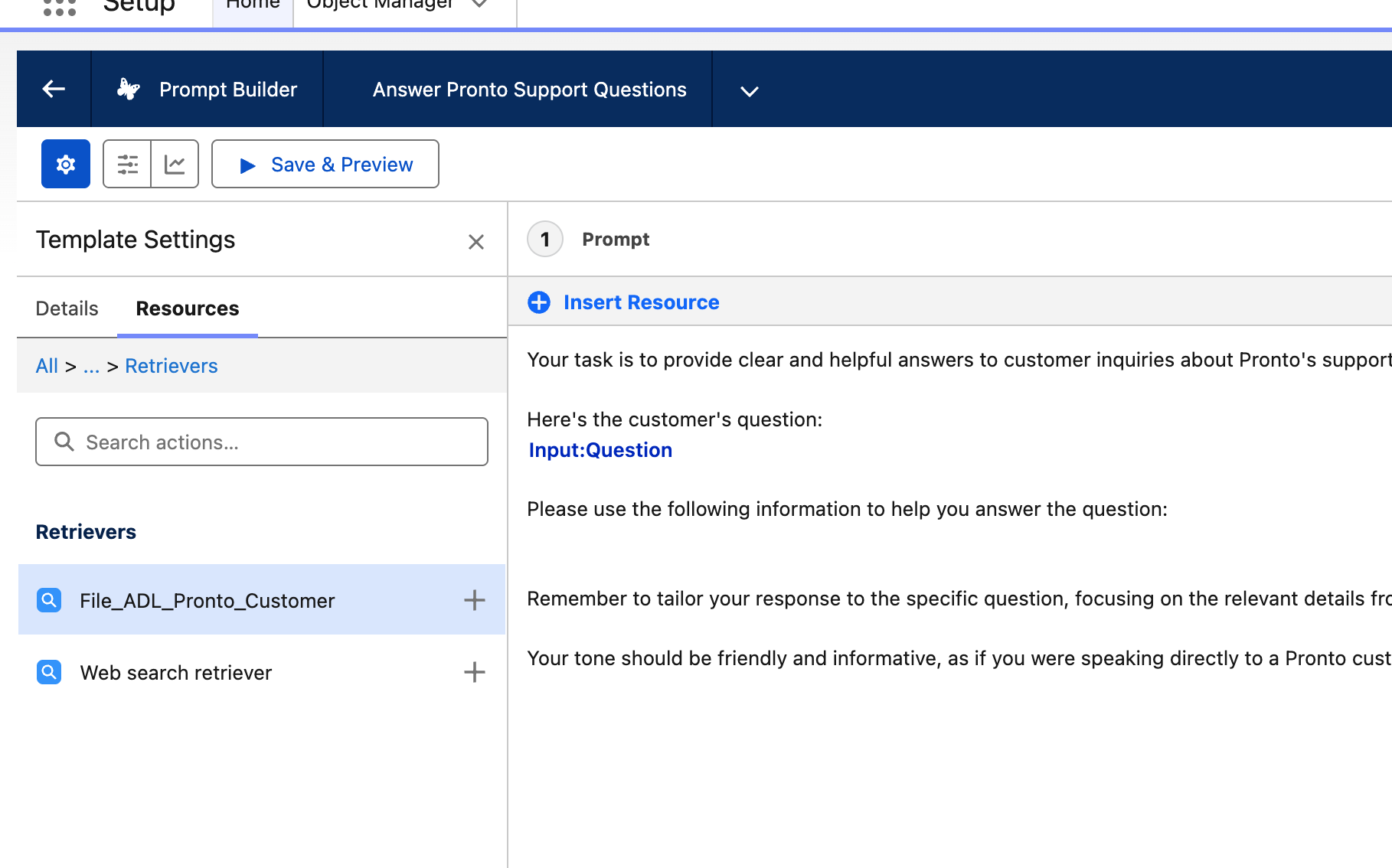
Scroll down to Search Parameters click into the box that says Search for or select a resource to insert, and then select Question.
Scroll down to Output Fields, click into the search box and select Chunk.
For Number of Results, enter
6.
Use the screenshot below to make sure that you entered the values correctly.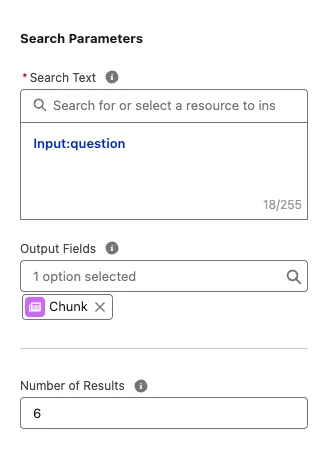 11. If everything looks like the image above, click Apply and Insert.
Step 2: Try it out
- At the top, click Save & Preview.
- Enter the following text into the Question field:
What is Pronto’s refund policy for a late delivery?- Click Preview.
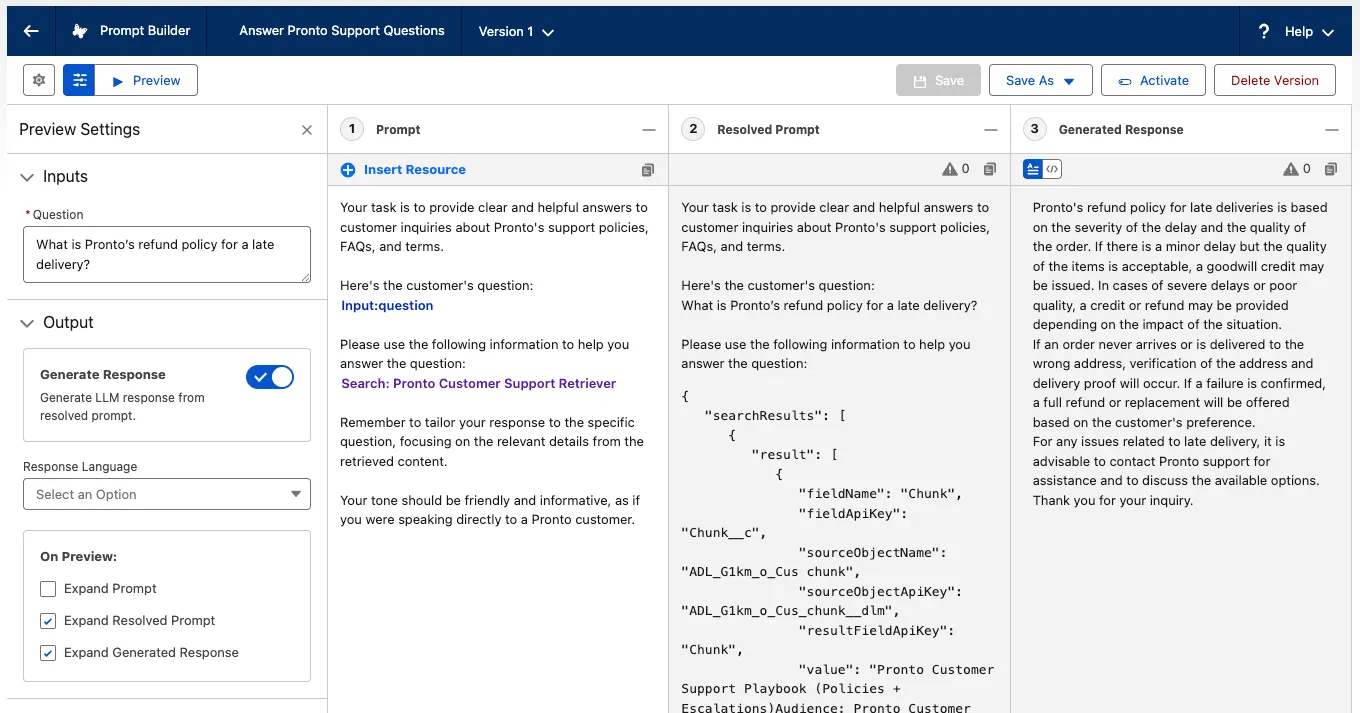
- In the Resolved Prompt panel, examine the prompt that was generated. The JSON structure represents the weighted responses from Einstein Search.
- In the Generated Response panel, examine the response the LLM generated.
- Enter another prompt in the Input field:
Do Pronto gift certificates expire or have restrictions?- Click Preview.
- Click Activate.
TIP
If you don’t see Active status right away, refresh the page.
This prompt template is now active and can be used from Apex, Flow, or within an agent.
This concludes Exercise 3.